Job Cost · Included in Twinn Reports
Budget vs Actual by Cost Code for Sage 100 Contractor
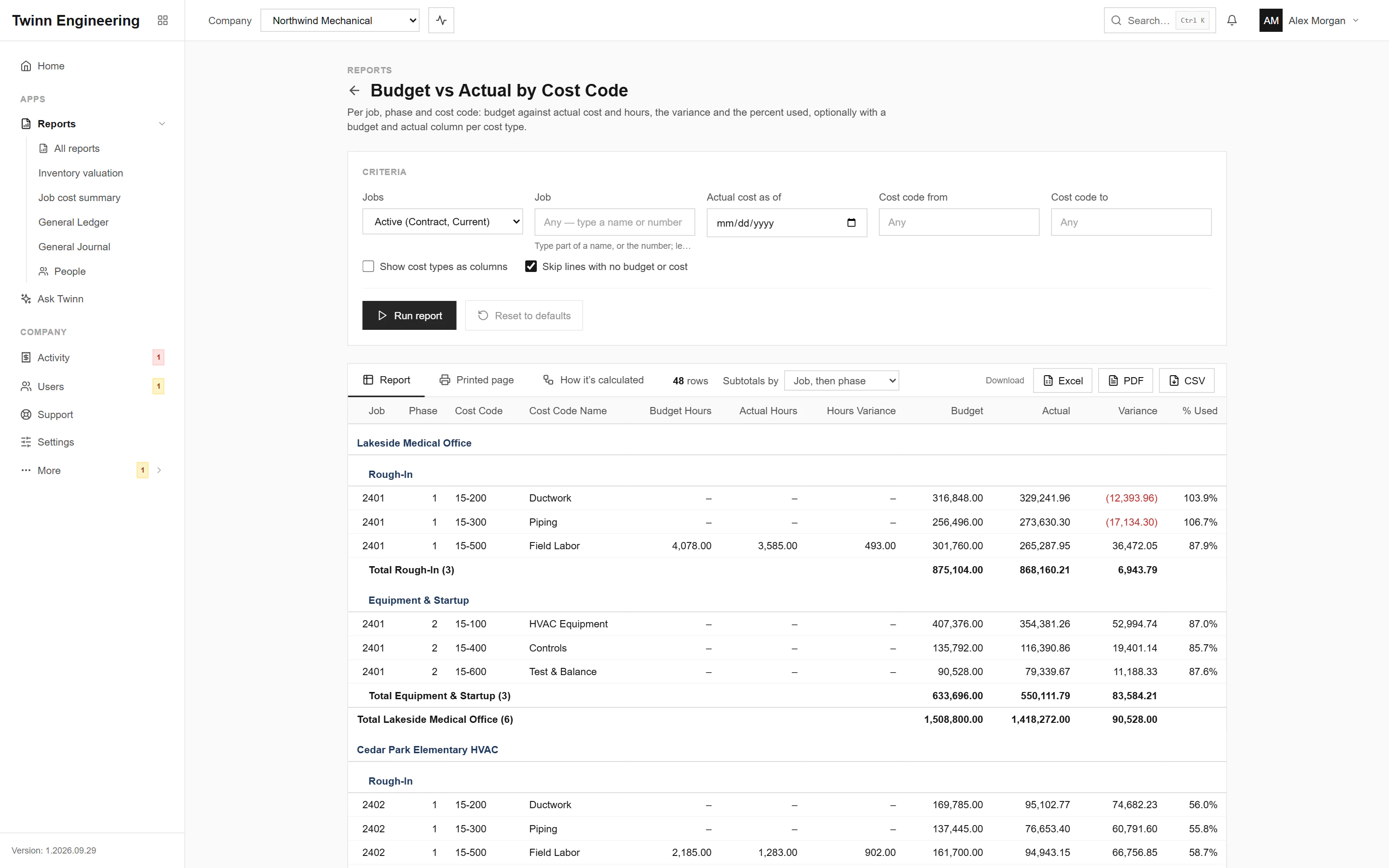
Where each job stands against its budget, phase and cost code by cost code: budget against actual cost and hours, the variance and the percent used, with a column per cost type if you want it. The report a project manager opens before the job meeting, and the first place an overrun shows up.
It runs in your browser against your live Sage 100 Contractor data, through the Twinn service on your own network, and exports to Excel, PDF or CSV.
Who uses it
- Project managers running their jobs
- Estimators checking how bids held up
- Controllers reviewing job cost
The questions it answers
- Which cost codes are over budget on this job?
- How much labor have we spent against the labor budget?
- Which jobs are over budget right now?
Ask Twinn · Early access
“Which jobs are over budget right now?”
Ask Twinn, the assistant inside Twinn, runs this same report to answer questions in plain English. It tells you which report it ran, with which criteria, as of when, so the answer always matches the report.
How Ask Twinn worksWhat’s in the report
Every column, and what it means.
- Job
- Job number.
- Job Name
- Job name (a grouping level).
- Phase
- Phase number (0 = no phase).
- Phase Name
- Phase description (a grouping level under the job).
- Cost Code
- Cost code (a decimal code such as 9310.002).
- Cost Code Name
- Cost code description.
- Budget Hours
- Budgeted hours.
- Actual Hours
- Hours posted in job cost (mostly labor).
- Hours Variance
- Hours left (negative = over).
- Budget
- Budget for the phase and cost code.
- Actual
- Job cost posted to the phase and cost code.
- Variance
- Budget left (negative = over budget).
- % Used
- Share of the budget spent.
Criteria you can set
Pick these before you run it. Twinn remembers your last run.
- Jobs
- Job
- Actual cost as of
- Cost code from
- Cost code to
- Show cost types as columns
- Skip lines with no budget or cost
How it’s calculated
The same notes Twinn shows beside the report, so anyone reading it knows what the numbers include.
- Budget is the job budget (every budget line for the phase and cost code). Actual is open job cost, up to the as-of date if you give one.
- Variance = Budget − Actual: positive is under budget, negative over. % Used = Actual / Budget.
- Cost codes with cost but no budget, and budget with no cost yet, both appear.
- Tick 'Show cost types as columns' for a Budget and an Actual column per cost type in use (names from your cost type list).
- Picking a job ignores the job status filter.
More Job Cost reports
Job Performance (WIP)
Per job: original budget and contract, approved change orders, revised estimate, costs and billings to date, percent complete, backlog and over/under billing.
Over/Under Billings
The WIP schedule: per job, revised contract, estimated cost, cost to date, percent complete, earned revenue, billed to date, over- and under-billings and gross profit to date, as of a date.
Job Profitability
Per job: contract and service revenue billed, cost by cost type (material, labor, equipment, subcontract, other), gross profit and margin, for a date or period range or to date.
Committed Costs
Open commitments per job and cost code from subcontracts and purchase orders: original, changes, committed, invoiced and remaining.
Job Cost Journal
Job cost records by job, phase and cost code.
Job Status Report
Job list with status, type, client, supervisor, key dates, contract, billed and cost to date.
See your own WIP in Twinn
Book a demo and we’ll set Twinn up on a test copy of your Sage 100 Contractor company, then walk you through your own WIP and over/under billings, and this report.
Book a demo